
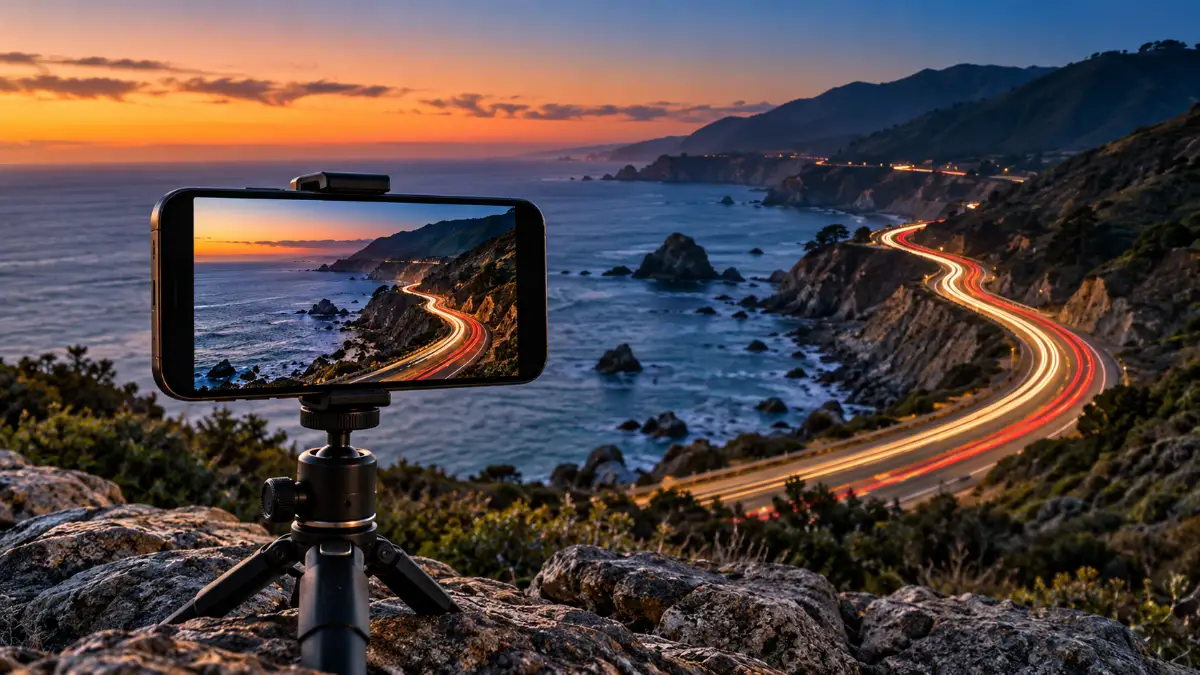
When it comes to perfect Long Exposure iPhone Photography settings, there is no single ideal. Here’s how you can sense three distinct types of motion: a waterfall flowing with sand at several feet per second, a cloud slowly moving across the sky, and headlights passing through an intersection. They all get treated the same, and that usually results in disappointing pictures.
Instead, the better question is not: What shutter speed to use? It is: What is moving, how are you moving it, and, obviously, what stays in sharp focus and how much motion do I really want?
After you answer those questions, it becomes a lot easier to decide between Live Photos vs. just making an image with a slow-shutter app and/or tripod/passive ND filter (or some combination of the three).
This guide is formulated around those few decisions.
Choose Your Long Exposure Method Before You Shoot
Don’t reach for an app or filter just because another photographer used one.
Start with the scene.
| Scene | Good starting method | Stability | Extra gear |
| Waterfall | Live Photo first | Recommended | Usually none |
| Fountain | Live Photo | Recommended | None |
| Ocean waves | Live Photo or slow-shutter app | Recommended | Optional |
| Traffic trails | Dedicated slow-shutter/light-trail method | Essential | Usually none at night |
| Moving crowd | Live Photo or app | Recommended | None |
| Daylight extended blur | Controlled app workflow | Essential | ND filter may help |
| Dark static landscape | Night mode | Recommended | Usually none |
| Slow-moving clouds | More controlled capture method | Essential | Scene dependent |
Apple’s native Long Exposure option is an effect applied to Live Photos, not a conventional manual shutter-speed setting. Apple describes it as simulating a DSLR-like long exposure by blurring motion.
That makes Live Photos a convenient starting point, but not necessarily the final answer for every subject.
Understand the Four Variables That Control the Look
Realise what makes a difference to the image before worrying about gear
Subject Speed
Fast-moving water distorts itself across a short capture. A cloud can hardly move at all.
This means that using the same method could lead to very noticeable streaking in one type of scene, while yielding virtually no visible effect at all on another.
Consider movement in the following terms:
waterfall: fast and continuous
walking person: moderate
traffic: fast but directional
ocean swell: rhythmic
clouds: often slow
leaves in wind: irregular
The quicker and steadier the motion, the easier it becomes to generate a readable blur of movement.
Direction of Movement
The direction in which you change it determines how the reading of shadows is felt.
A cyclist running left to right across the screen reveals a more distinct trajectory than that of someone moving directly toward the camera.
The same is true of cars.
I often find that a curving roadway makes for more interesting trails than one pointing directly at the camera since the motion sweeps across so much of your composition.
Before firing the shot, ask: where is that movement going?
Camera Stability: Two kinds of blur could be quite different from each other:
Subject blur is intentional.
Camera shake usually isn’t.
When the waterfall is smooth with the adjacent rock still crisp, then that image feels deliberate.
That causes the whole image to appear casual if both become soft.
Stability is one of the highest value enhancements you can achieve, especially for anything that goes beyond a simple experiment.
Available Light
Doing long-exposure-style work in daylight and at night creates competing issues.
Some controlled long-capture techniques may not be possible due to excessive daylight during the day.
When it’s too dark at night, headlights and signs can become so bright that it could be even 7000K.
This is why an ND filter may be a good idea at some sunny waterfall but completely irrelevant, maybe,e for traffic by night.
iPhone Long Exposure Settings: What Can You Actually Control?
This is where online advice goes wrong a lot.
The iPhone Camera app is stock and a slow-shutter handle your type of control or dedicated apps.
Native Live Photo Method
Apple’s own local form, on the other hand, is purposefully minimal.
A Live Photo records motion around the time of a shutter press, and with this recorded movement, Photos can create a Long Exposure effect. According to current Apple documentation, a Live Photo contains about 1.5 seconds of video and audio before and after the shot itself is taken.
That is useful when you want:
a quick result
no extra app
simple water blur
crowd movement
quick overview of the technique
By its very simple nature, however, comes the limitation. You aren’t working with a simple rubber diaphragm like a DSLR shutter control.
Third-Party Slow-Shutter Apps
Dedicated camera applications might provide controls like:
different exposure durations
motion-blur modes
light-trail modes
ISO adjustments
exposure compensation
focus control
real-time previews or computational stacking
The controls vary depending on the app.
That’s important. Do not assume that anything written about one app in the past will still apply to another, and do not revise your payment for an application based on its age-old list of Features.
Only use an app to solve a specific issue-do not do it just because they claim you need “professional” photography.
Focus and Exposure
In fact, in many long exposure compositions your stationary element is just as important to us as the moving subject.
For example, if you’re shooting a stream, it could be the rocks.
It could be the buildings if you are shooting traffic.
The world around you is outdoors: a park (probably) blurring away the pedestrians; and that could be some sculpture, storefront.
Ensure and inspect your brightest areas to make sure the anchor is focused correctly before capturing.
ISO
While a higher ISO may make for a brighter dark scene, it is also capable of degrading image quality with more noise or processing artifacts.
Don’t just crank up the ISO on manual control tumblers to make it brighter by having them push a few stops of light.
Take the lowest sensitivity that allows your method to work and just gauge the actual image, not some number you want.
There is no definitive “best ISO” that works for all iPhone, app, pp, and light combinations.
How to Photograph Waterfalls With an iPhone
Waterfalls are popular for a reason: the movement is continuous, easy to recognize, and usually surrounded by stationary objects.
But smooth water alone doesn’t make a strong photograph.
Choose the Amount of Water Blur You Want
Think of waterfall motion as a spectrum:
textured → soft → silky → mist-like
A small woodland cascade might look peaceful when the water becomes soft.
A huge waterfall, on the other hand, can lose its sense of power if you smooth every trace of texture out of it.
Before shooting, decide whether you want to communicate:
- speed
- power
- calmness
- softness
- abstraction
Then choose the technique accordingly.
Build the Composition Around Something Sharp
Include a stable visual anchor.
Good options include:
- rocks
- bridge railings
- tree trunks
- cliff edges
- the riverbank
Those sharp elements make the water’s movement more obvious.
A frame filled with silky water often has less visual structure than one where movement passes around something solid.
Keep Bright Water From Dominating
White water reflects a lot of light.
If it is already nearly featureless in the preview, a long-exposure effect won’t magically recover the lost detail.
Check the brightest foam and spray.
Slightly lowering exposure can sometimes preserve texture, but don’t blindly underexpose every scene. Judge the actual light in front of you.
Watch for Moving Leaves and Branches
Your tripod can be perfectly stable while the photograph still contains unintended blur.
Wind may move:
- leaves
- grass
- thin branches
- hanging moss
- flowers
Look around the whole frame, not only at the waterfall.
Sometimes waiting 30 seconds for a gust to pass makes a bigger difference than changing a camera setting.
Waterfall Mist and Lens Droplets
Keep a microfiber cloth handy.
A tiny droplet on an iPhone lens may be almost invisible until it creates a hazy patch or flare around bright areas.
At a wet waterfall, check the lens after every few photographs.
It’s a small habit that prevents a surprising number of ruined shots.
How to Create Light Trails With an iPhone
Traffic trails look dramatic because the movement creates its own graphic lines.
The road becomes part of the composition.
Choose a Safe Shooting Position
Safety comes first.
Use a location where you can stand legally and securely, such as:
- a sidewalk set back from traffic
- an overlook
- a protected pedestrian area
- a bridge where pedestrian access and photography are allowed
Don’t step into traffic lanes, shoulders with poor visibility, or medians simply to get a lower angle.
Compose Around the Road’s Shape
Before thinking about exposure, look at the geometry.
A straight road can create strong directional lines.
A bend creates sweeping curves.
An intersection may create several overlapping trails.
Choose a composition where the route of the vehicles naturally leads the viewer through the frame.
Headlights vs Taillights
Headlights and taillights create different visual emphasis.
Rather than deciding that one is always better, consider the background.
Bright headlights can dominate a dark scene. Red taillights may work better when you want softer lines through an urban composition.
Try both directions if your viewpoint allows it.
Keep Buildings and Signs Sharp
Traffic trails become more convincing when the city around them stays still.
Use buildings, barriers, road signs, or street furniture as visual anchors.
If those elements smear in the same direction as the lights, you’ve probably introduced camera movement.
When Live Photo Isn’t Enough
The built-in Long Exposure effect can be fun for traffic, but you may eventually want longer, more continuous-looking trails.
That’s when a dedicated slow-shutter or light-trail app becomes useful.
The reason to switch is not that the Live Photo method is “bad.” It simply gives you less control over how long and how strongly the motion is accumulated.
How to Blur People and Crowds on iPhone
Moving people can give a static scene a sense of time and activity.
They can also create an incomprehensible mess.
Start With Architecture That Doesn’t Move
Give the photograph a stable backbone.
Possible anchors include:
- station architecture
- museum interiors where photography is permitted
- public squares
- staircases
- sculptures
- storefronts
- transit entrances
Then allow people to move through that fixed composition.
Look for Predictable Pedestrian Flow
A stream of commuters walking in one direction usually produces cleaner motion than people wandering randomly.
Look at the scene for a few moments before shooting.
Where do people enter?
Where do they exit?
Do they pause in one place?
That simple observation will improve your timing.
Decide Whether You Want Motion or Disappearance
These are different creative goals.
If people remain partly visible as blurred figures, they communicate activity.
If movement is averaged more heavily by a particular capture method, people can become much less prominent, making the architecture feel quieter.
Don’t expect perfect “crowd removal,” though. Someone who stands still for part of the exposure may remain clearly visible.
How to Photograph Waves and Seascapes
Water doesn’t always need to become completely smooth.
Preserve Some Texture When the Scene Needs Energy
A calm minimalist beach may suit very smooth water.
A stormy coastline may not.
If every wave becomes a soft haze, you can accidentally remove the energy that made the scene interesting in the first place.
Try different levels of motion and compare them afterward.
Use Rocks, Piers or Shorelines as Anchors
Stationary structures make the water’s transformation easier to read.
A rock surrounded by streaking water is usually more visually informative than an entire frame of featureless blur.
Protect Your Phone and Lens From Spray
Even apart from device protection, spray affects image quality.
Check the lens often and wipe it with a proper microfiber cloth rather than a salty shirt sleeve.
Also keep yourself in a safe position around surf. Long exposure photography isn’t a reason to stand on slippery rocks where incoming waves can knock you over.
How to Capture Moving Clouds
Clouds are different because they often move far more slowly than water or traffic.
A technique that creates obvious blur in a fountain may barely affect a cloud.
Watch their movement relative to a fixed landmark before you set up.
If you can barely see the clouds changing position over several moments, a short native Live Photo effect may be subtle. A more controlled capture method can make more sense when you specifically want stretched or directional cloud movement.
Cloud photography also rewards strong foregrounds. Buildings, mountain ridges, trees, or other stationary shapes help make the sky movement visible.
Daytime vs Nighttime Long Exposure on iPhone
Long exposure behaves differently once the sun goes down.
| Factor | Daylight | Night |
| Main challenge | Too much light | Limited light and bright point sources |
| Common subjects | Water, crowds, clouds | Traffic, illuminated motion |
| Stable support | Important | Very important |
| ND filter | Can be useful | Usually less necessary |
| Highlight concern | Sunlit reflections | Headlights, signs, lamps |
| Live Photo | Good for simple effects | Depends on subject |
| Dedicated app | Useful for more control | Useful for trails and motion |
Night mode deserves a special mention here.
It can use multi-second capture times in low light on supported iPhones, but its purpose is low-light photography rather than intentionally creating long motion trails. Apple says Night mode turns on automatically when the camera detects low light, and its capture time can sometimes extend for several seconds.
Don’t choose Night mode simply because the displayed capture time looks “long.”
Choose it when low light is the problem you’re trying to solve.
When Do You Actually Need an ND Filter?
An ND filter is useful, but it is one of the most oversold accessories in beginner long exposure tutorials.
What an ND Filter Does
ND stands for neutral density.
The basic job of the filter is to reduce the amount of light reaching the camera.
That can help when a controlled long exposure would otherwise become too bright-especially in daylight.
Think of it as sunglasses for the camera, but with an important goal: reducing incoming light without intentionally changing the scene’s color.
When an ND Filter Helps
An ND filter becomes useful when you want more controlled motion blur in strong light.
Examples include:
- waterfall in bright afternoon sun
- beach or seascape during the day
- clouds under strong daylight
- intentional motion blur where your app’s exposure options would otherwise overexpose the image
When You Probably Don’t Need One
You probably don’t need an ND filter to:
- try the Live Photo effect for the first time
- photograph a fountain
- learn how motion and stability interact
- experiment with nighttime traffic
- blur pedestrians in softer light
Don’t buy one just because “long exposure photographers use filters.”
First identify the problem the filter would solve.
If excessive daylight isn’t limiting the shot, the filter may simply add complexity.
How Much Long Exposure Blur Is Enough?
This is one of the most important questions in creative long exposure photography, and it rarely has a numerical answer.
Think in five stages:
Frozen → hint of motion → natural blur → silky → abstract
Each one can be right.
Imagine a waterfall.
If you freeze every droplet, the image feels energetic.
Add moderate blur, and you still see the water’s shape while gaining a sense of flow.
Smooth it heavily, and the photograph becomes calmer.
Push even further, and the water may become an almost fog-like shape.
None of those results is automatically superior.
Ask what you want the viewer to feel.
The same applies to people. Slight blur suggests movement. Stronger blur can make a crowd feel anonymous and fast-moving.
Don’t chase maximum blur simply because the technique allows it.
Long Exposure Mistakes That Ruin Good iPhone Photos
Assuming Longer Is Always Better
More blur is not necessarily more professional.
If an effect removes all the interesting texture from a waterfall or turns traffic into an unreadable mass, you’ve gone too far for that particular image.
Letting the Camera Move
If stationary objects are soft, fix stability before changing anything else.
A tripod, ledge, wall, or firm support usually matters more than another editing app.
Photographing Motion Without a Sharp Reference
Motion is easier to understand when the viewer has something still to compare it with.
Before shooting, identify the part of the frame you want to remain sharp.
Ignoring Highlight Clipping
Bright water, illuminated signs, and vehicle headlights can become featureless.
Pay attention to them before and after capture.
Using Long Exposure on Chaotic Movement
Not every moving subject is suited to smooth motion blur.
Random leaves, several pedestrians moving in conflicting directions, or rapidly changing light can create clutter instead of elegance.
Buying Gear Before Learning the Technique
A filter won’t improve weak composition.
A tripod won’t make an uninteresting subject compelling.
A paid app won’t decide how much blur suits the photograph.
Learn the visual principle first. Buy gear when you encounter a limitation you can name.
Forgetting to Clean the Lens
This matters especially around:
- waterfalls
- beaches
- rain
- city lights
A greasy or wet lens can create flare and haze that no amount of careful long exposure technique will fix cleanly afterward.
Long Exposure Troubleshooting by Result
Instead of wondering which setting is wrong, start with what the image is telling you.
| What you see | Likely problem | Try this |
| Entire scene looks soft | Camera moved | Use firmer support |
| Motion barely shows | Movement/capture too limited | Wait for stronger motion or change method |
| Water looks featureless | Excessive smoothing | Retain more texture |
| Traffic trails look chaotic | Too many conflicting paths | Simplify composition |
| People look like random ghosts | Unpredictable movement | Find consistent pedestrian flow |
| Sharp foreground is soft | Camera shake or focus problem | Stabilize and refocus |
| Water is pure white | Highlights clipped | Reduce exposure |
| Lights have strange haze | Wet or dirty lens | Clean lens |
| Clouds barely change | Movement is too slow | Use a more suitable capture method |
This approach is far more useful than memorizing one “best setting.”
Three Long Exposure Field Recipes
When you’re standing in front of the scene, use these as starting routines.
Waterfall Recipe
- Find water with continuous visible movement.
- Look for a solid rock, bank, bridge, or tree as an anchor.
- Clean the lens.
- Stabilize the phone.
- Check the brightest water for lost detail.
- Capture several versions.
- Compare the texture of the water rather than automatically choosing the smoothest one.
- Check leaves and plants for wind blur before leaving.
Traffic Trail Recipe
- Find a safe, legal viewpoint.
- Study the direction of the road.
- Choose buildings or road structures that should remain sharp.
- Stabilize the phone.
- Watch bright headlights and signs.
- Capture several different traffic flows.
- Compare headlights and taillights.
- Move to a dedicated light-trail app if the built-in effect is too short or subtle.
Crowd Blur Recipe
- Choose a strong architectural composition first.
- Watch how pedestrians naturally move through it.
- Find a flow where several people travel in a similar direction.
- Stabilize the phone.
- Capture multiple attempts.
- Check whether the people support or overwhelm the main subject.
- Keep the version where motion improves the composition-not simply the one with the most blur.
What Gear Is Actually Worth Carrying?
You can keep your setup remarkably small.
Essential
Your iPhone
That sounds obvious, but it reinforces the point that the technique doesn’t require a complete camera kit.
A clean lens
A microfiber cloth weighs almost nothing and fixes a problem that expensive accessories cannot.
Useful
Small tripod
This is usually the first accessory worth considering because stability improves almost every controlled long exposure workflow.
Situation Dependent
Remote shutter or timer
Useful when physically touching the phone risks shaking it.
ND filter
Useful when excessive daylight is preventing the controlled exposure you want.
Optional
Add-on lenses
These can change perspective or framing, but they are not required to understand or practice long exposure.
Build the kit around actual problems you encounter.
How to Edit Long Exposure iPhone Photos Naturally
The effect shouldn’t end when you press the shutter, but editing should support the photograph rather than advertise itself.
Start With Crop and Straightening
Fix composition first.
A slightly crooked horizon is more distracting than a minor color issue, especially in seascapes or architecture.
Recover Distracting Highlights
If your editing latitude allows it, pull back overly bright water or city lights gently.
Don’t flatten the entire photograph just to save one tiny highlight.
Adjust Contrast Carefully
Long exposure can create naturally soft areas.
Too much contrast can make smooth water or blurred figures look harsh and artificial.
Don’t Oversharpen the Moving Areas
Blur is the point.
Sharpening the entire frame aggressively can create strange edges around water and light trails.
Focus sharpening decisions on areas that were supposed to remain detailed.
Avoid Excessive Clarity and Saturation
The smoothness of the motion often works because it contrasts with restrained detail elsewhere.
Heavy clarity, texture, and saturation can destroy that relationship.
Make the photograph look finished, not processed for attention.
iPhone Long Exposure Field Checklist
Before you shoot, ask:
- What exactly is supposed to move?
- What must remain sharp?
- How fast is the subject moving?
- Is the movement predictable?
- What direction will the blur travel?
- Is the iPhone stable enough?
- Is the lens clean?
- Are the brightest highlights under control?
- Is there too much daylight for the technique I’m using?
- Do I genuinely need an ND filter?
- Would Night mode solve the actual problem better?
- Have I made several versions with different amounts of motion?
Save that list on your phone if you’re still learning. After a few shoots, most of it becomes instinctive.
Where to Go After You Master the Basics
For your next practice session, don’t look for ten different subjects.
Choose one moving subject and photograph it three ways.
With a waterfall, for example:
- Make one image that keeps plenty of water texture
- Make another with moderate smoothing
- Create the softest version your chosen method allows
Then compare the three.
Don’t ask which one has the “longest exposure.”
Ask which photograph makes the scene feel the way you remember it.
That simple exercise teaches something far more useful than memorizing a shutter-speed chart: long exposure isn’t about creating as much blur as possible. It’s about deciding how movement should appear in a still photograph.
Frequently Asked Questions
What is the best setting for long exposure photography on iPhone?
There isn’t one universal setting. The best method depends on how quickly the subject moves, the available light, how much blur you want, and whether you’re using Apple’s Live Photo effect or a dedicated camera app.
How do I take longer light trails with an iPhone?
Stabilize the phone and use a dedicated slow-shutter or light-trail app when the native Live Photo Long Exposure effect doesn’t create long enough trails. App capabilities vary, so check current features before choosing one.
What is the best way to photograph waterfalls with an iPhone?
Use stable support, include sharp rocks or landscape features, watch bright water highlights, keep the lens clean, and experiment with different amounts of smoothing rather than automatically choosing the strongest effect.
Do I need an ND filter for iPhone long exposure photography?
Not necessarily. ND filters are most useful when too much daylight prevents the controlled longer exposure you want. You usually don’t need one for basic Live Photo experiments or nighttime traffic.
Can I shoot long exposures on an iPhone during daylight?
Yes. Simple Live Photo effects can work in daylight, while more controlled long-exposure techniques may benefit from an ND filter when the scene is very bright.
Why are stationary objects blurry in my long exposure photos?
The phone may have moved, your focus may be off, or the supposedly stationary object may actually have been moving in the wind. Check stability first.
How do I keep water smooth while keeping rocks sharp?
Keep the iPhone fixed while the water moves through the frame. A tripod or solid support helps separate intentional subject motion from camera shake.
Should I use Live Photos or a slow-shutter app for light trails?
Try Live Photos for a quick experiment. Use a dedicated app when you need longer-looking trails or more control over how motion is accumulated.
Why do people look ghosted in iPhone long exposure photos?
People change position during the capture, so their appearances can overlap or blur. Predictable pedestrian movement usually produces cleaner results than people stopping, turning, or moving in several directions.
How much motion blur should a good long exposure photo have?
Only as much as helps the image. A powerful waterfall may benefit from visible texture, while a calm stream may suit heavy smoothing. The intended mood matters more than maximizing blur.