
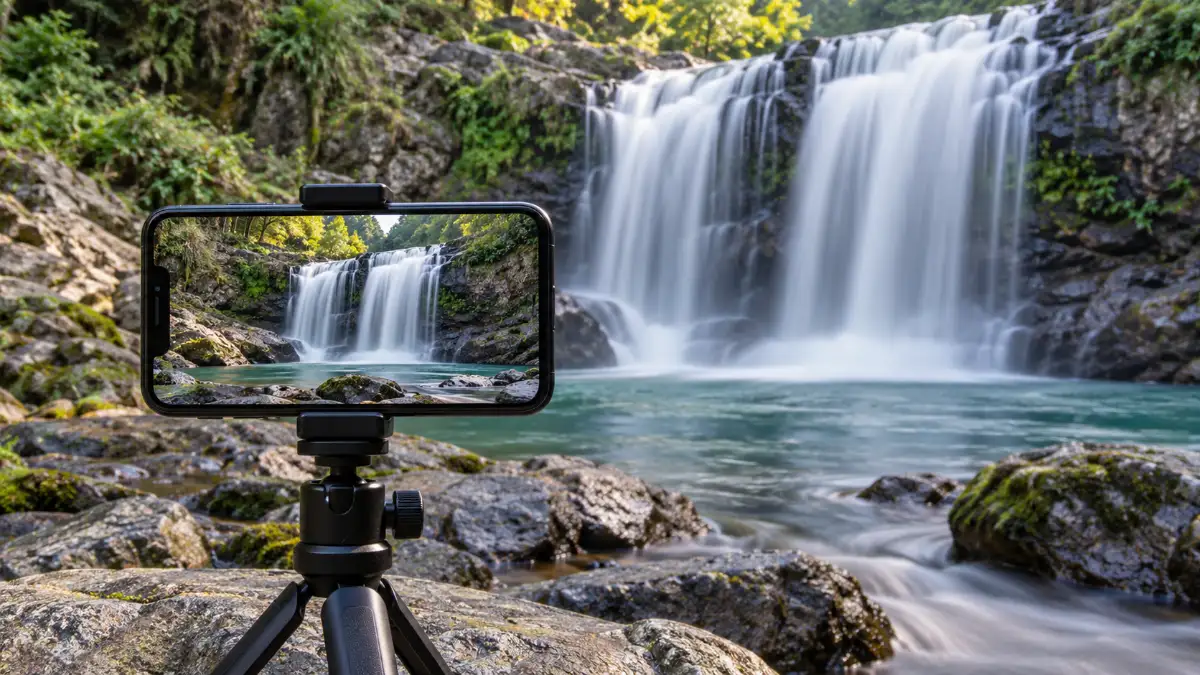
When photographing a subject, you might want to know how to Do Long Exposure on iPhone.
Those were all considered “long-exposure photography” – an iPhone capable of capturing those things easily and, of course, without the same requirements. For instance, Apple’s Live Photo Long Exposure effect may suffice for flowing water. Night mode is much more reasonable in a dark, mostly static Landscape. An actual slow-shutter app can be a better tool for finer control of this sort of motion blur or light trails.
Don’t kick off with something like « Where is the long exposure button? »
Anyway, begin with a more productive question:
What do I want the final photo to look like?
Which iPhone Long Exposure Method Should You Use?
Use this table before changing any settings.
| What you want to photograph | Best starting method | Stability needed | Difficulty |
| Waterfall | Live Photo Long Exposure | Helpful | Easy |
| Flowing stream | Live Photo Long Exposure | Helpful | Easy |
| Ocean waves | Live Photo or slow-shutter app | Recommended | Easy-Medium |
| Car light trails | Live Photo or slow-shutter app | Recommended | Medium |
| Moving crowds | Live Photo or app | Recommended | Medium |
| Static night landscape | Night mode | Highly recommended | Easy |
| Controlled motion effects | Slow-shutter app | Recommended | Medium |
| Stars | Night mode or specialized workflow | Very important | Medium-Hard |
The big distinction is simple:
Use Live Photo Long Exposure when movement is the effect. Use Night mode when darkness is the problem. Use an app when you need more direct control.
Method 1 – Use Live Photos for Quick Motion Blur
This is the fastest internal solution for building up liquid, blurred passers-by and other motion.
There, Apple’s Long Exposure option is found in the Live Photo effects menu instead of as an entirely separate long-exposure shooting mode. Apple touts the feature as simulating long exposure from a DSLR, blending motion captured by Live Photos.
How to Shoot It
The workflow is short:
Open Camera in Photo mode.
Turn on Live Photos.
Keep the iPhone steady.
Photograph a moving subject.
Open Live Photo in Photos
Tap Live, then Long Exposure.
This is why Apple instructs you to stay steady before and right after the shutter: Live Photos includes roughly 1.5 seconds of footage even before pressing it, then about a second-and-a-half afterwards (at least one frame if possible).
What This Method Does Well
Live Photo Long Exposure is excellent when you want an obvious motion effect without setting up a manual camera app.
Good subjects include:
- waterfalls;
- fountains;
- streams;
- waves;
- passing traffic;
- moving pedestrians.
It’s also useful for experimentation because you can shoot the Live Photo first and decide afterward whether the Long Exposure version actually improves it.
Where It Starts to Struggle
The simplicity comes with limits.
You aren’t selecting a shutter speed of 5s, 10s, or even 20 seconds as someone would with traditional photography. You can’t, for example, tell the effect to blur the waterfall without also blurring leaves blowing in front of it.
However, anything moving during the moment captured can add to that final blur.
Which means a busy scene with water, swaying trees, moving people, and anything close-up to the camera can get messy quickly.
Method 2 – Use Night Mode for Low-Light Scenes
Night mode solves a different problem.
Its purpose is to help the iPhone make a useful photo when the available light is low. That doesn’t necessarily mean the subject has to move at all.
Apple says Night mode activates automatically on supported iPhones when the camera detects a low-light environment. Depending on the darkness of the scene, the capture can be quick or take several seconds.
How to Use the Longer Available Night Mode Exposure
For a dark cityscape, landscape, or other stationary scene:
- Open Camera.
- Frame the scene in low light.
- Let Night mode activate.
- Open its exposure controls.
- Choose from the available duration options.
- Stabilize the iPhone.
- Press the shutter.
- Keep the phone still until the capture completes.
The final point matters more than people expect. Moving the phone halfway through can reduce detail even if everything in your landscape is perfectly still.
Why You May Not See the Exposure Time You Expected
If you’ve watched a video where someone gets a much longer Night mode duration than you do, that doesn’t automatically mean you’re missing a setting.
Night mode responds to the actual shooting conditions.
The available capture duration can depend on factors such as:
- how dark the scene is;
- your iPhone model;
- camera choice;
- stability;
- what the camera detects in front of it.
Apple specifically notes that Night mode exposure time changes according to the darkness of the scene.
So don’t chase a particular number just because someone else saw it. Judge the photograph instead.
Method 3 – Use a Slow-Shutter App When You Need More Control
The built-in camera is intentionally simple. That’s great until the effect you want depends on choosing how much motion to record.
A specialized app becomes useful when you want to make decisions the Live Photo workflow doesn’t expose directly.
When the Built-In Camera Isn’t Enough
Consider an app when you want to experiment with:
- longer light trails;
- light painting;
- a more controlled amount of water blur;
- deliberate motion effects;
- repeated exposures with consistent settings;
- more direct exposure control.
This doesn’t mean every long-exposure photograph requires a paid app. Start with the built-in camera first. Move to another tool when you can identify a specific limitation that is stopping you.
Features to Look for in an App
Don’t choose an app simply because the name contains “pro.”
Look for features that match the photograph you’re trying to make:
- adjustable exposure or shutter duration;
- ISO control;
- manual focus;
- exposure compensation;
- motion-blur mode;
- light-trail mode;
- timer;
- stabilization aids;
- RAW support where it genuinely benefits your editing workflow.
A beginner photographing a fountain doesn’t need every one of these. Someone experimenting with nighttime light painting may.
How to Photograph Smooth Water on an iPhone
Water is the easiest place to see how long-exposure photography changes a scene.
Choose Water With Visible Movement
Look for motion you can actually see while you’re standing there.
Good choices include:
- waterfalls;
- fast streams;
- fountains;
- surf;
- waves breaking around rocks.
A nearly still pond isn’t a great first test because there may be too little movement during the captured moment to produce a dramatic difference.
Keep Rocks, Bridges, or Shorelines Sharp
A long-exposure image often looks strongest when the viewer can compare the blurred motion with something completely still.
For a waterfall, that might be a dark rock.
For a river, it could be a bridge.
For waves, it could be a pier or the horizon.
This contrast tells the eye that the softness is intentional rather than the result of a missed focus.
Watch the Wind
Water isn’t the only thing moving outdoors.
A common situation is a waterfall surrounded by leaves. The water looks beautifully smooth, but the trees also look smeared because the wind moved them during the Live Photo.
Before shooting, scan the full frame.
Ask:
What else is moving that I might want sharp?
Sometimes blurred foliage works artistically. Other times it simply weakens the picture.
Don’t Assume More Blur Is Always Better
A waterfall doesn’t have to look like white fog to count as a good long exposure.
Leaving some texture in the water can make a large waterfall feel powerful. Smoothing every detail can occasionally make the scene look flatter than the regular photo.
When possible, capture several variations and choose based on the mood you want-not on which image has the most blur.
How to Photograph Car Light Trails on an iPhone
Traffic brings a different challenge: the moving subjects are bright.
Find a Safe Shooting Position
The photograph isn’t worth stepping into traffic for.
Look for:
- a wide sidewalk;
- a pedestrian bridge;
- an overlook;
- a balcony;
- a designated viewing area;
- another secure position away from moving vehicles.
Set up where you can remain still without blocking pedestrians or putting yourself close to the road.
Include Something Stationary in the Frame
Light trails become more convincing when the surroundings stay sharp.
Try framing them against:
- buildings;
- bridges;
- road structures;
- a skyline;
- fixed street architecture.
This creates a visual contrast between the movement of the traffic and the stillness of the city.
Watch Headlights and Streetlights
Night scenes often contain small but very bright light sources.
A streetlamp close to the camera can pull attention away from the trails. Headlights approaching directly toward you may also dominate the image.
Sometimes the best fix isn’t a setting-it’s moving the composition slightly so the brightest lamp is outside the frame.
Shoot Several Passes
Traffic patterns change constantly.
One capture might contain a single car. The next might have multiple vehicles moving through the full frame.
Don’t spend ten minutes perfecting the setup and then leave after one shot.
Take several attempts and compare the shape, density, and direction of the trails afterward.
How to Blur Moving People Without Blurring the Background
People are more unpredictable than water or traffic, which makes this technique interesting.
Choose a Stationary Architectural Background
Busy locations work best when something strong anchors the frame.
Examples include:
- a train station;
- a plaza;
- a museum entrance;
- a shopping street;
- a downtown intersection.
Buildings give the moving figures something to contrast against.
Stabilize the iPhone Before People Enter the Frame
Don’t follow the pedestrians with the phone.
Compose the scene first, hold or mount the iPhone in a fixed position, then let people move through your frame.
You want their movement to create the blur while the architecture stays as clean as possible.
Expect Ghosting Rather Than Perfect Disappearance
People won’t always vanish neatly.
Someone walking quickly may appear as a translucent streak. Another person may stop briefly and remain partly visible. Clothing, bags, or bright colors may leave recognizable shapes.
That’s normal.
If you need a completely empty-looking scene, the short Live Photo workflow may not be enough for every crowd.
How to Shoot a Night Landscape With a Longer Exposure
A dark landscape doesn’t necessarily need intentional motion blur. You may simply want more detail and cleaner low-light results.
That’s where Night mode becomes the better tool.
Use a Stable Surface or Tripod
Put the iPhone somewhere it won’t move.
Apple recommends a solid, secure surface or tripod to improve stability and clarity during Night mode captures.
You don’t need a large professional tripod. A compact phone tripod is enough if it’s secure.
Wait for Night Mode to Activate
Night mode is condition-dependent.
If there’s plenty of light, it may not activate at all. If you’re in a genuinely dark environment, the icon should indicate that Night mode is available.
Use the Available Longer Capture Option
Open the Night mode control and choose from the duration options the iPhone provides.
Avoid treating the longest number as a score you need to beat.
What matters is whether the final image has good detail without camera movement.
Keep the Phone Still Until the Capture Ends
Don’t touch the phone again until the exposure completes.
Apple may show alignment crosshairs if the device detects movement during a Night mode capture. Use them to bring the phone back into alignment.
Can You Use iPhone Long Exposure for Stars?
Yes, but first decide what you mean by “stars.”
There are at least three different photographic goals:
- capturing visible stars in a dark sky;
- making a brighter nighttime landscape with stars overhead;
- creating long star trails that show apparent movement across the sky.
Those aren’t the same task.
Night mode on supported iPhones can help with a relatively static night-sky photograph when the phone is very stable. A tripod becomes particularly useful because small movements matter more in the dark.
Star trails are different. They depend on recording apparent star movement over a much longer period and may require a specialized app or a different capture-and-stacking workflow.
Don’t assume that selecting Live Photo Long Exposure will turn an ordinary night-sky picture into dramatic star trails.
Live Photo vs Night Mode vs Long Exposure App
Here’s the simplest way to choose.
| Feature | Live Photo | Night Mode | Slow-Shutter App |
| Beginner-friendly | Excellent | Excellent | Varies |
| Extra app needed | No | No | Yes |
| Designed around motion blur | Yes | No | Often |
| Designed for low light | Not specifically | Yes | Depends |
| Fine duration control | Limited | System-controlled choices | Often stronger |
| Good for waterfalls | Yes | Situational | Yes |
| Good for static night scenes | Weak fit | Excellent | Often |
| Good for creative light trails | Good | Limited | Strong |
| Tripod useful | Yes | Very useful | Usually |
The mistake is choosing a feature because its name sounds more “professional.”
Choose based on the photograph.
iPhone Long Exposure Settings Cheat Sheet
Save this section for the next time you’re actually out shooting.
| Scene | Starting method | What should move? | What should stay still? | Main risk |
| Waterfall | Live Photo/app | Water | Rocks and camera | Wind-blurred foliage |
| Stream | Live Photo | Water | Landscape | Too little visible movement |
| Ocean | Live Photo/app | Waves | Horizon and camera | Excessive overall blur |
| Traffic | Live Photo/app | Cars/lights | Camera and buildings | Overpowering highlights |
| Crowd | Live Photo/app | People | Architecture | Messy ghosting |
| Night skyline | Night mode | Nothing required | Entire camera | Camera shake |
| Stars | Night/specialized method | Depends on goal | Camera | Noise or unwanted movement |
Treat this as a starting point, not a rigid recipe.
Two waterfalls can move at completely different speeds. Two streets can have completely different lighting. Photography still requires looking at what’s actually happening in front of you.
7 Mistakes That Ruin iPhone Long Exposures
Moving the Phone Instead of Letting the Subject Move
If the whole scene is soft, the problem is probably camera movement rather than the long-exposure effect itself.
Stabilize the phone and try again.
Choosing a Scene With No Useful Movement
Long Exposure can’t create dramatic motion from something that barely changes.
Choose a subject with movement you can see.
Using Night Mode When You Actually Want Motion Blur
Night mode and Live Photo Long Exposure aren’t interchangeable.
If your goal is silky water, begin with the motion-focused method. If your goal is a detailed dark skyline, begin with Night mode.
Expecting Live Photo to Work Like Manual Shutter Speed
The Photos app’s Long Exposure effect doesn’t give you conventional multi-second shutter settings.
If you need specific exposure control, that’s the point where a specialist camera app may make sense.
Ignoring Wind
Water might be the movement you want, but leaves, flowers, flags, hair, and clothing can move too.
Check the whole composition.
Letting Bright Lights Dominate the Frame
A single streetlamp or headlight can become the brightest object in the picture.
Before changing complicated settings, see whether slightly reframing solves the problem.
Assuming a Longer Exposure Is Automatically Better
More blur isn’t always more beautiful.
Texture can matter. Shape can matter. A bit of visible water detail may suit a powerful waterfall better than turning the entire flow into featureless mist.
Judge the photograph, not the exposure duration.
What Most iPhone Long Exposure Tutorials Don’t Explain
The biggest gaps usually aren’t hidden camera settings. They’re misunderstandings about what the different iPhone methods actually do.
Long Exposure, Night Mode, and Live Photo Are Not the Same Thing
Think of them as different tools.
Live Photo Long Exposure: useful when you want movement to blur.
Night mode: useful when you need a better photograph in low light.
Slow-shutter app: useful when built-in controls don’t give you enough creative control.
Once you understand that distinction, choosing a method becomes much easier.
More Motion Blur Is Not Always a Better Photo
The purpose isn’t to blur as much as possible.
The purpose is to make motion contribute something to the picture.
A small amount of movement may preserve useful texture. Heavy blur may create a calmer, more abstract result.
Neither is automatically correct.
Everything That Moves Can Blur
The effect can’t know that you wanted the river soft but the flag beside it sharp.
Look for:
- leaves;
- grass;
- flags;
- boats;
- people;
- clothing;
- branches;
- anything else moving in the scene.
Decide whether that extra movement helps or hurts.
A Long Exposure Needs a Visual Anchor
Some of the strongest images combine obvious movement with something stable:
water + rock
cars + buildings
pedestrians + architecture
waves + pier
The stationary object gives the viewer a reference and makes the motion appear intentional.
Live Photos Can Disappear With Certain Camera Settings
If you’re using a supported Pro model and can’t get Live Photos to work, check the capture format.
Apple currently says Live Photos aren’t available with ProRAW or HEIF Max turned on.
That’s especially easy to miss if you recently switched to a high-resolution format and forgot about it.
Before You Leave the Location: 30-Second Check
Before packing up, zoom in and check the photographs while you’re still there.
Ask:
- Is at least one important stationary area sharp?
- Is the intended movement actually visible?
- Did the whole camera move?
- Are bright highlights distracting?
- Did the wind blur anything I wanted sharp?
- Did I capture a normal version for comparison?
- Did I take more than one attempt?
A thirty-second review can save you from getting home and discovering that every shot had the same problem.
Final Takeaway
Choosing the right iPhone method is more important than finding the longest possible exposure.
If movement itself is what you want to show, start with Live Photo Long Exposure.
If the scene is dark but mostly stationary, start with Night mode.
If you understand the effect you want but the built-in camera doesn’t give you enough control, that’s when a slow-shutter app becomes useful.
For your first practice session, choose moving water. Take a normal photograph and a long-exposure version from the same position. Comparing those two images will teach you more about motion, stability, and composition than chasing complicated settings from the start.
Frequently Asked Questions
Which iPhone long exposure method is best for waterfalls?
Start with Live Photo Long Exposure. It’s simple, built-in, and flowing water usually provides enough movement for the effect to be obvious. A slow-shutter app becomes useful if you later want more control over how the water looks.
How do I take light trail photos on an iPhone?
Stabilize the phone, frame a road from a safe position, and experiment with Live Photo Long Exposure first. For longer or more controlled trails, consider an app that provides dedicated light-trail or slow-shutter controls.
Is Night mode the same as long exposure on iPhone?
No. Night mode is designed primarily for low-light photography, while the Live Photo Long Exposure effect is designed to blur recorded movement. They may sometimes produce exposure-like effects, but their purposes and workflows are different.
How long can an iPhone expose a photo?
There isn’t one universal answer. The built-in Live Photo Long Exposure doesn’t work like a manually selected traditional shutter duration, while Night mode provides exposure times based on the device and shooting conditions.
Can I manually control shutter speed in the iPhone Camera app?
Manual shutter-speed availability depends on the iPhone generation and camera capabilities. If your built-in Camera app doesn’t expose the level of shutter control you need, a compatible third-party camera app may provide more options.
Why does my iPhone long exposure make trees blurry?
The branches or leaves probably moved during the Live Photo. The effect records motion across the scene, so it can’t automatically keep wind-blown foliage sharp while blurring only your intended subject.
Can I take long-exposure photos in bright daylight with an iPhone?
Yes. Live Photo Long Exposure can be used in daylight, which is why waterfalls and fountains are good beginner subjects. More traditional very-long daylight exposures may require additional control or equipment depending on the effect you’re trying to achieve.
What is the best iPhone method for blurring moving people?
Live Photo Long Exposure is an easy place to start. Keep the iPhone fixed and let people walk through a stationary scene such as a plaza or station. A slow-shutter app can offer more creative control if needed.
Can iPhone long exposure photograph stars or star trails?
Night mode can help photograph a dark sky on supported models when the phone is very stable. Dramatic star trails are a different technique and usually require a longer specialized capture or stacking workflow.
When should I use a third-party long-exposure app instead of Live Photos?
Use one when you can identify a specific control you need-such as longer trails, adjustable exposure duration, manual ISO, focus control, or dedicated motion-blur modes-that the Live Photo method doesn’t provide.