
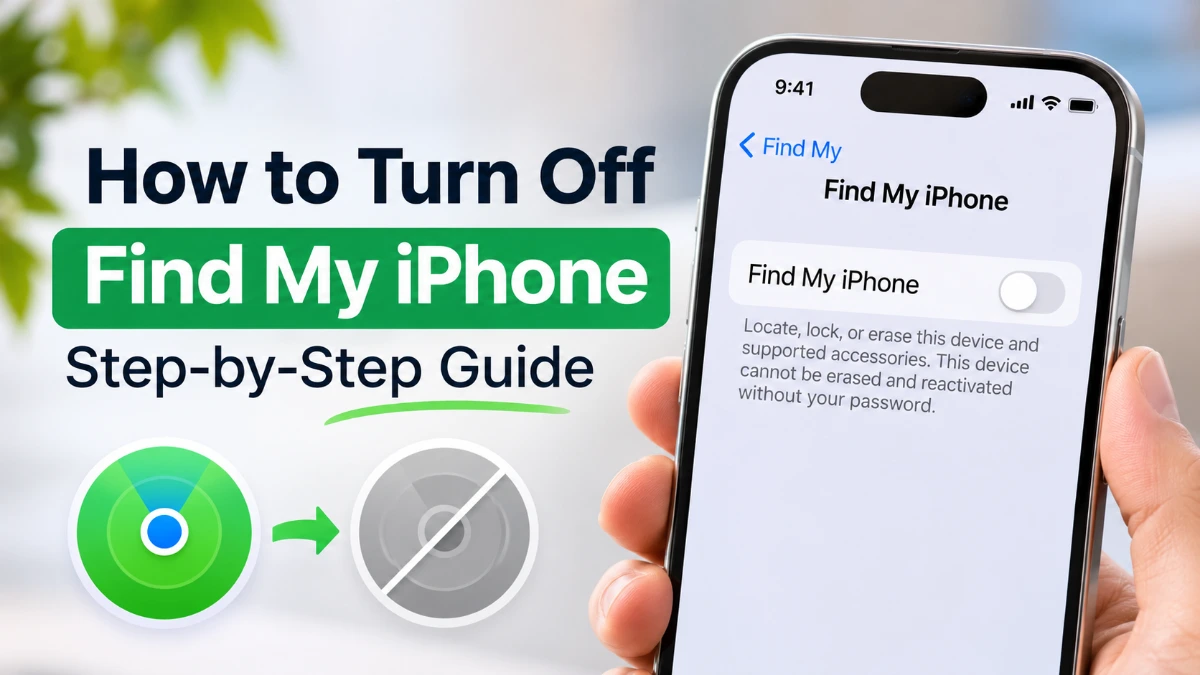
To turn off Find My iPhone, open Settings → [your name] → Find My → Find My iPhone, switch off Find My iPhone, enter your Apple ID password, and tap Turn Off. This disables Apple’s device-finding feature and removes Activation Lock from your iPhone.
Before you continue, remember that disabling Find My means you won’t be able to locate, lock, or remotely erase your iPhone through the service if it gets lost. If you’re selling or giving away your phone, you’ll also need to erase your personal information.
How to Turn Off Find My iPhone in Settings.
You can disable Find My iPhone directly in Settings without installing additional software. Apple’s official Find My iPhone instructions confirm the following process.
- Open the Settings app on your iPhone.
- Tap your name at the top of the screen.
- Select Find My.
- Tap Find My iPhone.
- Switch off the Find My iPhone toggle.
- Enter your Apple Account password when prompted.
- Tap Turn Off to confirm.
Once you’ve finished, return to the same settings screen and check that the toggle remains off.
These instructions apply to current iOS versions. If you’re using an older iPhone, some menu names or settings locations may look slightly different.
If you want to explore more useful iPhone features, check out our guide on how to take a scrolling screenshot on iPhone
Can You Turn Off Find My iPhone Without a Password?
You generally cannot turn off Find My iPhone without authenticating with the Apple Account linked to the device. Apple requires this verification to prevent someone else from disabling your phone’s security protections.
If you’ve forgotten your password, you can reset it using a trusted Apple device:
- Open Settings and tap your name.
- Select Sign-In & Security.
- Tap Change Password.
- Follow the instructions to verify your identity and set a new password.
If you don’t have access to a trusted device, follow Apple’s official account recovery instructions to regain access.
Avoid third-party tools that promise to disable Find My without authentication. Some may expose your personal information, fail to remove Activation Lock, or leave your device unusable.
Why Can’t I Turn Off Find My iPhone?
If Find My iPhone won’t turn off, the problem may involve account restrictions or security settings. The cause depends on how your iPhone is configured, so check the following possibilities before making changes.
Find My iPhone Is Greyed Out.
Screen Time restrictions can prevent changes to your Apple Account settings, including access to options needed to manage Find My.
To check your restrictions:
- Open Settings → Screen Time.
- Tap Content & Privacy Restrictions.
- Under Privacy Restrictions, select Allow Changes to Settings.
- Tap Accounts.
- Choose Allow, entering your Screen Time passcode if requested.
Apple’s Screen Time restriction guidance explains how these controls can make Apple Account settings unavailable.
If your iPhone is managed through parental controls, a parent or guardian may need to approve the change. School- or company-owned devices can also have management restrictions that only an administrator can modify.
Stolen Device Protection Is Enabled
Stolen Device Protection adds another layer of security to your iPhone, making it harder for someone who knows your passcode to change sensitive account settings.
You cannot disable Find My while Stolen Device Protection remains enabled.
To review this setting:
- Open Settings.
- Tap Face ID & Passcode or Touch ID & Passcode, depending on your iPhone.
- Enter your device passcode.
- Select Stolen Device Protection.
- Follow the required authentication steps if you need to turn it off.
Depending on your location and security configuration, Apple may require a security delay before allowing the change. Its Stolen Device Protection guidance explains when additional verification applies.
Only disable this protection when necessary, since it helps safeguard your account if your device is stolen.
What Happens When You Turn Off Find My iPhone?
Turning off Find My affects several features designed to protect your iPhone and help recover it if it goes missing.
- Device tracking stops: You can no longer locate that iPhone through Find My.
- Activation Lock is removed: The security feature that helps prevent another person from activating your device without authorization is disabled.
- Remote protection becomes unavailable: You lose the ability to mark that iPhone as lost or remotely erase it through Find My.
- Your personal data stays on the phone: Disabling Find My doesn’t delete your photos, contacts, messages, or installed apps.
If your iPhone is missing or stolen, it’s usually better to keep Find My enabled so you can continue trying to locate and protect it.
Want to stop sharing your location instead?
You don’t have to disable Find My iPhone. Open Settings → [your name] → Find My and switch off Share My Location.
This stops sharing your location with other people while keeping Find My’s device-tracking and Activation Lock protections enabled.
How to Turn Off Find My Before Selling or Trading In an iPhone.
If you’re preparing to sell, trade in, or give away your iPhone, removing Activation Lock is only part of the process. You should also make sure your personal information is backed up and erased.
Follow these steps:
- Back up your data: Save important photos, contacts, messages, and other information before resetting the device.
- Unpair your Apple Watch: If an Apple Watch is paired with the iPhone, unpair it before transferring ownership.
- Sign out of your Apple Account: Open Settings, tap your name, scroll down to Sign Out, and follow the prompts.
- Erase your iPhone: Go to Settings → General → Transfer or Reset iPhone → Erase All Content and Settings.
- Complete the reset: Enter the requested credentials and follow the remaining instructions. If you’re transferring an iPhone with an eSIM, choose to erase the eSIM profile when prompted.
When the normal on-device erasure process finishes successfully, Find My and Activation Lock are turned off, allowing the next owner to set up the phone.
One important precaution: don’t manually delete photos or contacts while you’re still signed in to iCloud. Those changes may sync across your other Apple devices. Instead, use the proper erasure process when you’re ready to transfer ownership.
How to Remove an iPhone From Find My Remotely
If you’ve already sold or given away your iPhone without removing it from your Apple Account, you can remove Activation Lock remotely.
Here’s what to do:
- Open iCloud Find My Devices in your browser.
- Sign in using the Apple Account linked to the iPhone.
- Select the iPhone from your list of devices.
- Choose Erase This Device and follow the instructions.
- After the erase is complete, select Remove This Device.
Once the device is erased and removed from your account, Activation Lock is removed, and the new owner can activate it.
If the iPhone is offline, the remote erase won’t begin until it reconnects to the internet. You should complete the removal only after the erase has finished.
Apple’s remote device removal instructions also explain how device status affects removal.
Only remove an iPhone that you own or are authorized to transfer. If your device is missing or stolen, removing it from Find My could make recovery harder and reduce its security protections.
Do You Need to Turn Off Find My Before an iPhone Repair?
Not necessarily. Whether Find My must be disabled depends on your iPhone’s software version and the repair service handling the device.
For eligible repairs and trade-ins on iOS 27 or later, Apple provides a feature called Ready for Repair or Trade In. It allows Find My to remain enabled while the device undergoes an eligible repair or trade-in process.
If your service provider instructs you to use the feature:
- Open the Find My app.
- Select the iPhone that needs service.
- Tap the More button.
- Under Settings, choose Repair or Trade In.
- Tap Enable and enter your Apple Account password to authenticate.
Apple’s Ready for Repair or Trade In instructions explain how the feature works and when it can be used.
For iPhones running iOS 26 or earlier, you may still be asked to turn off Find My before service.
Because repair requirements can vary, follow the preparation instructions provided for your specific appointment or trade-in rather than disabling Find My automatically.
Frequently Asked Questions
How do I turn off Find My iPhone?
Open Settings → [your name] → Find My → Find My iPhone. Turn off the Find My iPhone toggle, enter your Apple Account password, and tap Turn Off to confirm.
Can I turn Find My iPhone off without my Apple ID password?
Normally, no. Apple requires authentication to disable Find My iPhone. If you’ve forgotten your password, reset it through your trusted Apple device or Apple’s official account recovery process.
Why is Find My iPhone greyed out?
Normally, no. Apple requires authentication to disable Find My iPhone. If you’ve forgotten your password, reset it through your trusted Apple device or Apple’s official account recovery process.
Why is Find My iPhone greyed out?
Find My iPhone settings may be unavailable because of Screen Time restrictions, device management policies, or account security controls. Check your Screen Time settings and contact your device administrator if your iPhone is managed by an organization.
Does turning off Find My iPhone remove Activation Lock?
Yes. Successfully disabling Find My iPhone removes Activation Lock from that device. This is particularly important when selling, trading in, or giving away your iPhone.
Can I turn off Find My iPhone remotely?
You can remove a device from Find My remotely using iCloud Find Devices. If you’re transferring ownership, erase the device and then remove it from your account. Remote erasure may remain pending until an offline iPhone reconnects to the internet.
Will turning off Find My iPhone notify anyone?
Turning off Find My iPhone does not normally send a direct notification to people you share your location with. However, your device’s location may become unavailable, and people may notice that they can no longer see it.