
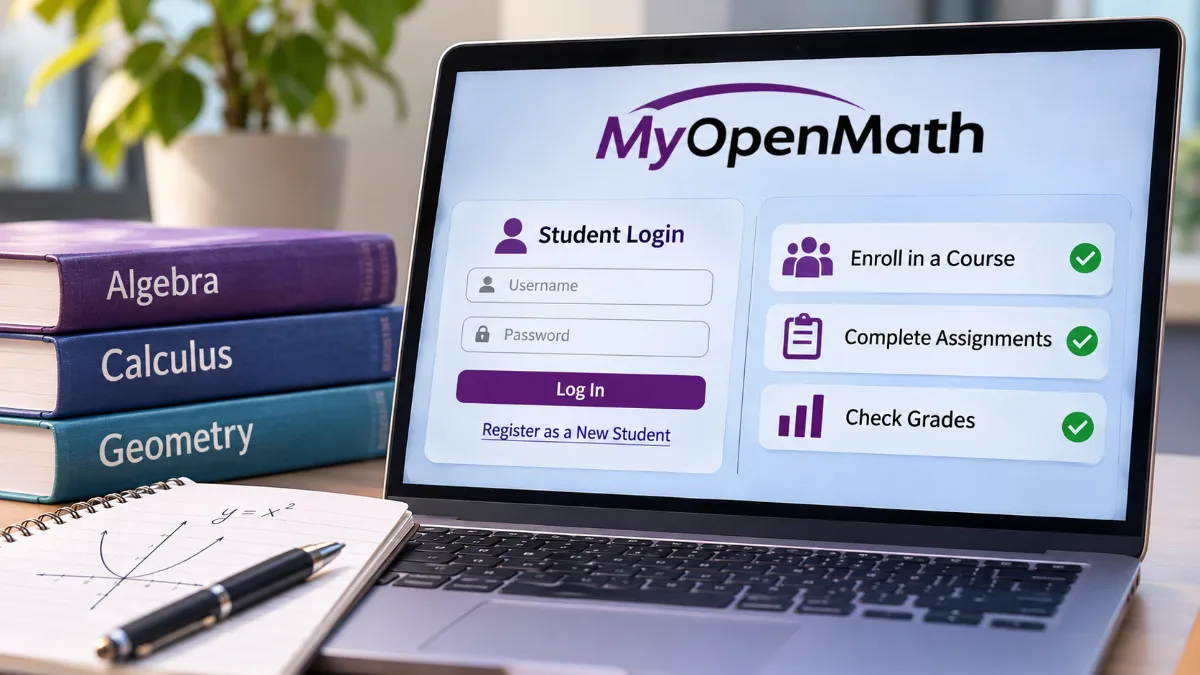
My Open Math, officially known as MyOpenMath, is a free, open-source online homework and assessment platform used by colleges and instructors to manage mathematics coursework. Students can sign in through the official MyOpenMath website using their username and password. New students can create an account and join a class with a Course ID and, when required, an Enrollment Key provided by their instructor.
After enrolling, students can open assignments, submit answers, review feedback, and check their grades. Some colleges also connect MyOpenMath with learning management systems such as Canvas or Moodle. In those cases, students may access their coursework directly through their college’s learning platform without needing a separate login.
How to Log In to My Open Math
If you already have an account, signing in usually takes only a few steps. You’ll need the username and password you created when registering.
Follow these steps:
- Open your preferred web browser and visit the MyOpenMath website.
- Locate the login section on the homepage.
- Enter your registered username and password.
- Click the login button to access your account.
- Select your enrolled course to open its assignments and learning materials.
Once you’re signed in, your available courses should appear on your account’s home page. What you see inside each course depends on the materials and assignments your instructor has made available.
If your college uses Canvas or Moodle, follow the access instructions provided in your course. You may need to open a MyOpenMath assignment through your school’s learning management system instead of signing in directly.
How to Register for MyOpenMath and Enroll in a Course
New students can create a MyOpenMath account at no cost. Before registering, though, check your instructor’s instructions. Some colleges automatically create student accounts through their learning management systems, making separate registration unnecessary.
Create a New Student Account
If your instructor asks you to register directly, follow these steps:
- Visit the official MyOpenMath website.
- Select “Register as a new student.”
- Fill in the requested account information.
- Choose a username and a secure password.
- Enter your course details if the registration form requests them.
- Complete the registration process by following the on-screen instructions.
You can find additional guidance in the student account registration and enrollment instructions published by Eastern Connecticut State University.
Use accurate personal information, especially your name and email address. This helps your instructor identify your account and connect your coursework to the correct student.
If you’ve used MyOpenMath for another class, you generally don’t need a second account.
Enter Your Course ID and Enrollment Key
For direct course enrollment, your instructor will normally provide the information needed to join the correct class.
- Course ID: A unique identifier that tells MyOpenMath which course you want to join.
- Enrollment Key: A course-specific code that restricts enrollment to authorized students when the instructor has enabled this requirement.
Enter these details exactly as provided. Enrollment Keys may be case-sensitive, so check capitalization and spacing if your information isn’t accepted.
Not every course requires an Enrollment Key. Some instructors allow enrollment without one, while colleges using LMS integration may handle enrollment automatically.
Unlike commercial textbook access codes, a MyOpenMath Enrollment Key isn’t something students need to purchase.
Enroll in Another Class
You can usually join another course using your existing account.
After signing in, look for “Enroll in a New Class.” Enter the new Course ID and any required Enrollment Key, then follow the instructions to complete enrollment.
If your new class doesn’t appear, make sure you’re using the correct account and that your instructor has supplied the right enrollment information.
How to Complete MyOpenMath Assignments and Check Grades
MyOpenMath allows students to complete math exercises online, submit answers, and receive automated grading or feedback when those features are enabled.
According to the MyOpenMath student guide, students can navigate course materials and use the Gradebook to review completed assignments, scores, and available instructor feedback.
To complete an assignment:
- Sign in and open your course.
- Find the homework or assessment assigned by your instructor.
- Read the instructions, due date, and attempt limits.
- Work through the questions and enter your answers in the requested format.
- Submit or save your responses as directed.
- Review your score and any available feedback.
Questions may ask for numerical values, equations, algebraic expressions, or other mathematical responses. Pay attention to formatting requirements because the system may not accept an answer entered incorrectly, even when your calculation is right.
If you’re struggling with a geometry assignment involving perpendicular lines, for example, reviewing the relevant concepts and formulas before another attempt can help you understand where your solution went wrong.
Some assessments allow students to retry questions, while others limit attempts or delay feedback until a specified time. These settings depend on your instructor.
Checking your grades: Open the Gradebook within your course to see the results your instructor has made available. If your school also uses Canvas or Moodle, remember that grades may not appear in both systems simultaneously.
MyOpenMath Login and Course Access Problems
Login errors, missing courses, and unavailable assignments can be frustrating, especially when a deadline is approaching. Fortunately, many problems have straightforward explanations.
| Problem | What to do |
| Cannot log in | Check your username and password for typing errors. |
| Forgot your password | Use the password-recovery option on the login page. |
| Forgot your username | Look for the username-recovery option or follow your instructor’s guidance. |
| Course ID or Enrollment Key rejected | Confirm the details with your instructor and check for typing errors. |
| Enrolled course is missing | Make sure you’re using the correct account and have completed enrollment. |
| Assignment won’t open | Check its availability dates, attempt limits, and any course requirements. |
| Grade isn’t showing | Review your course Gradebook and ask your instructor whether the result has been released. |
If you’ve forgotten your login details, try the account-recovery options before registering again. Creating duplicate accounts may make it harder to keep your course activity and grades together.
For assignment restrictions, missing grades, or enrollment problems, contact your instructor first. If your account is connected to your college’s learning management system, its technical support team may be able to resolve authentication issues.
Is MyOpenMath Free to Use?
Yes. MyOpenMath is free for students and instructors to use. Its open-source foundation makes it an alternative to commercial online homework platforms that charge students for access.
The platform supports automatically graded homework, mathematical question banks, online assessments, and course management. The University of Wisconsin’s MyOpenMath information also explains its free-access model and available integration features.
However, using MyOpenMath for free doesn’t necessarily mean your entire college course is free. Tuition, textbooks, and other materials may still involve separate costs.
It’s also worth distinguishing enrollment credentials from paid access codes. A Course ID identifies your class, while an Enrollment Key controls who can join when that requirement is enabled. Neither represents a standard MyOpenMath purchase requirement.
How Instructors Use MyOpenMath
Instructors use MyOpenMath to organize course materials, build assessments, assign homework, and track student progress.
They can work with existing question banks, create new problems, configure deadlines, and control how students receive feedback. Many questions are graded automatically, reducing the amount of routine grading instructors need to complete manually.
MyOpenMath also supports integration with learning management systems. For example, Oklahoma City Community College’s MyOpenMath guidance describes its Moodle integration, including assignment access and grade synchronization.
With a properly configured integration, students may open assignments through their college’s existing course platform. Whether they use MyOpenMath directly or through an LMS, the instructor determines the coursework, grading conditions, and deadlines.
Frequently Asked Questions
Can I use MyOpenMath without joining a college course?
Yes. MyOpenMath offers self-study opportunities for learners who want to practice mathematics independently. These are separate from instructor-managed college courses, so available materials and progress-tracking features may differ.
Can I use MyOpenMath on my phone?
MyOpenMath can be accessed through a mobile web browser. However, mathematical expressions, graphs, and longer assignments may be easier to work with on a laptop or desktop computer. Check that your browser displays the questions correctly before submitting important coursework.
Why does MyOpenMath say my answer is incorrect when my calculation seems right?
The system may expect a particular answer format, notation, or degree of precision. Review the question instructions for requirements involving fractions, decimals, equations, or rounding. If your answer still appears correct, ask your instructor to review the question.
Can I complete a MyOpenMath assignment after the deadline?
That depends on your instructor’s assignment settings. Some courses allow late submissions or extended access, while others close assignments automatically. Contact your instructor if you need an extension or believe an assignment should still be available.
Does MyOpenMath save my homework progress automatically?
Saving behavior can vary by assessment type and settings. Don’t assume every unfinished response has been saved. Follow the assignment’s save or submission instructions, and confirm that your work was recorded before leaving the page.