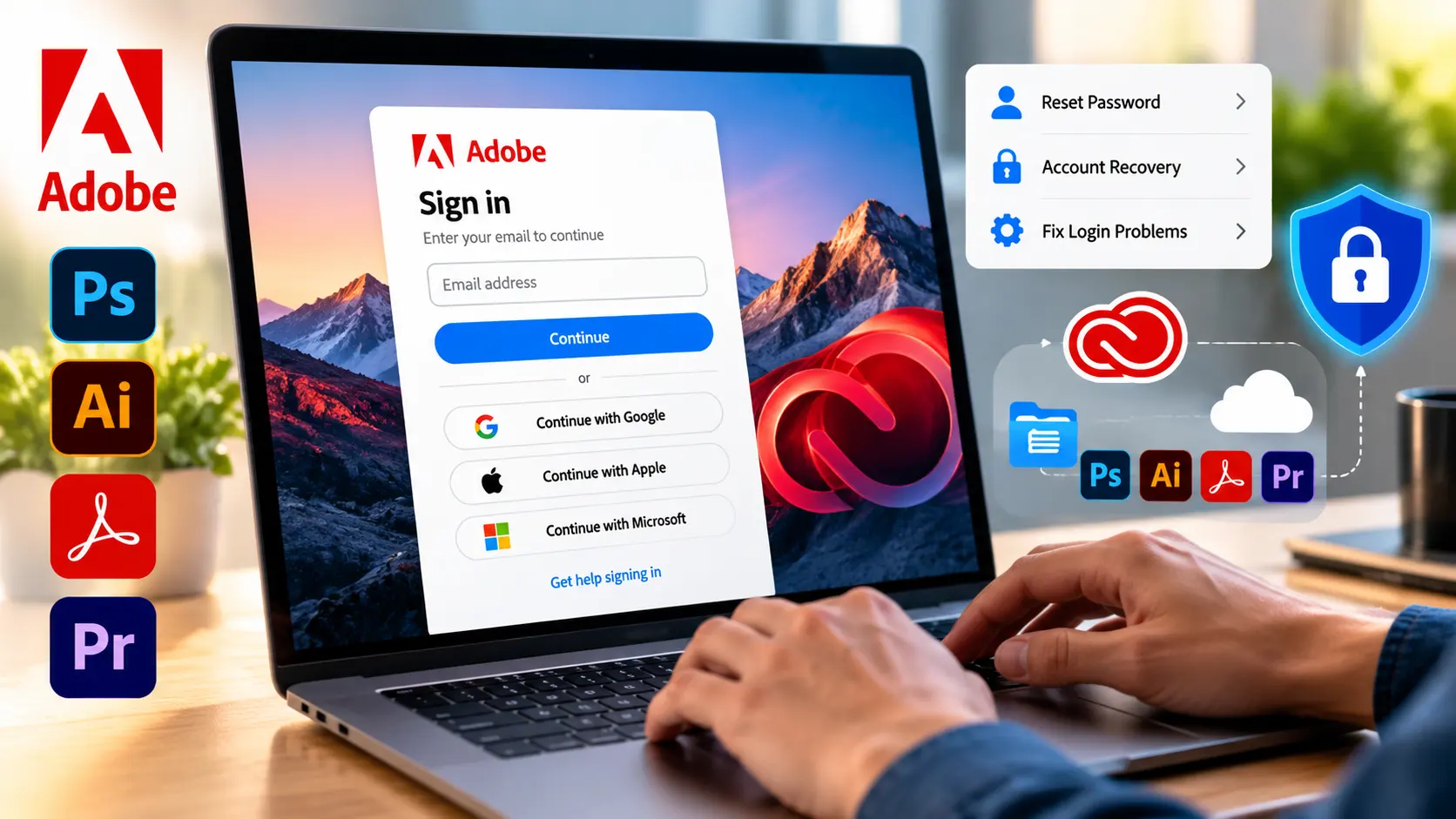
To complete your Adobe login, visit the official Adobe account page, enter your registered email address, and follow the sign-in instructions. Depending on how your account is set up, you can sign in with an Adobe password, a linked Google or Apple account, or your organization’s authentication system. Once signed in, you can manage your profile, check subscriptions, and access Adobe services available to your account.
If you’re having trouble signing in, Adobe provides options to reset your password, recover account information, and resolve verification errors. School and business users may also need to select the correct account profile or authenticate through their organization’s sign-in system.
How to Log In to Your Adobe Account
You can sign in to your Adobe account using a desktop browser, laptop, or mobile device. The process is generally the same across supported browsers.
- Open your browser and visit account.adobe.com.
- Enter the email address associated with your Adobe account.
- Select Continue or follow the next sign-in prompt.
- Enter your Adobe password or choose an available linked sign-in method.
- Complete any additional identity verification if requested.
- After signing in, open your account dashboard to manage your profile, plans, and available services.
If you have more than one Adobe account, make sure you’re using the email address linked to the subscription or service you need. Signing in with a different account could explain why a purchased plan isn’t appearing.
The exact screens and authentication steps may vary depending on your account type, device, and chosen sign-in method.
Adobe Login Methods: Email, Google, Apple, and More
Adobe offers several ways to sign in, so you don’t always need a separate Adobe password. Available options depend on your account and location.
Adobe email and password: Enter your registered email address and use your Adobe-managed password when prompted.
Google or Apple sign-in: If you created your Adobe account using Google or Apple, or later connected one of these accounts, you can select the corresponding sign-in option and authenticate through that provider.
Other social sign-in options: Adobe also supports Microsoft, Facebook, LINE, and Kakao accounts in eligible situations. You can find the supported methods under Adobe’s social sign-in options.
School or business login: Accounts managed by educational institutions or employers may use single sign-on (SSO). Instead of entering an Adobe-managed password, you’ll authenticate through your organization’s identity provider.
Use the method associated with your account to avoid accidentally creating or accessing a different Adobe profile. If you originally signed up through a social provider, you may still be able to use an existing Adobe password or create one through account recovery.
How to Access Adobe Creative Cloud, Acrobat, and Other Apps
Signing in to Adobe lets you access supported products and services, but your available features depend on your subscription or assigned licenses.
For Adobe Creative Cloud login, open the Creative Cloud desktop application and sign in with the Adobe account linked to your plan. Once you’re authenticated, the application displays the software and services available to that account.
If you’re using Photoshop, Illustrator, or Acrobat, open the application and follow its sign-in prompts. Depending on your device and account session, Adobe may recognize that you’ve already signed in through another application.
To check subscription details, open your Adobe account dashboard and look for the plans or billing section. Depending on your account, you can review your subscription, manage payment information, or view invoices.
Keep in mind that an Adobe account doesn’t automatically include access to paid software. You need an eligible subscription or an assigned license to use features that require payment.
How to Fix Common Adobe Login Problems
Adobe login problems can happen for several reasons, including forgotten passwords, verification failures, incorrect account selection, or application errors. Start by identifying the problem you’re experiencing rather than changing multiple settings at once.
Reset a Forgotten Adobe Password
If you’ve forgotten your password, Adobe offers a recovery process that lets you create a new one after verifying your identity.
- Open the Adobe sign-in page.
- Select Get help signing in.
- Choose Reset your password.
- Enter your registered email address and select Continue.
- Enter the verification code sent to your email or complete another available verification method.
- Create and confirm your new password.
- Select Update Password, then sign in using your new credentials.
You may also reach the password-reset option after entering your email address and selecting Continue.
For additional help, follow Adobe’s password reset instructions.
If your account is managed through Google, Apple, or an organizational identity provider, you may need to recover access through that service instead.
Read more: Long Exposure iPhone Photography: Settings, Techniques & Shot Ideas
Fix Missing Verification Codes or Account Email Issues
Adobe sometimes asks for a verification code to confirm your identity, particularly during password recovery or when additional authentication is required.
If your code hasn’t arrived, check your spam or junk folder and make sure you can access the email address associated with your account. You can also request another code or select a different verification method if Adobe offers one.
If you’ve forgotten which email address you registered with, use the Find your account option. Adobe may be able to locate your account using an email address or registered phone number.
For problems involving incorrect credentials, missing codes, or an unknown account email, Adobe provides account sign-in troubleshooting instructions.
Recovery may not be possible if you’ve lost access to all required verification methods. Follow the available recovery instructions rather than repeatedly submitting unsuccessful login attempts.
Fix Creative Cloud Sign-In Errors
If Creative Cloud keeps asking you to sign in, doesn’t recognize your credentials, or becomes stuck during authentication, try the following:
- Completely close the Creative Cloud desktop application and reopen it.
- Check whether your internet connection is working.
- Update Creative Cloud and your operating system.
- Update your browser if the authentication window isn’t working properly.
- Make sure you’re using the Adobe account associated with your subscription.
- Check whether your VPN, proxy, firewall, or network settings are preventing Adobe from connecting to its services.
If a browser window doesn’t open when you attempt social sign-in from an Adobe application, try signing in directly through your browser before reopening the application.
Restarting your computer may also resolve temporary application issues.
If you’re still unable to connect, Adobe’s Creative Cloud sign-in troubleshooting guide provides additional solutions for application and network-related errors.
Avoid deleting license files or making advanced system changes unless you’re following instructions that specifically address your error.
Adobe Login for School and Business Accounts
Students, teachers, and employees often use Adobe accounts provided by their schools or employers. These accounts may have different authentication requirements from personal accounts.
When signing in, Adobe might ask whether you want to use a Personal Account or a Company or School Account. This usually happens when multiple accounts or profiles are associated with the same email address.
Choose the profile that contains the applications, subscriptions, or cloud files you want to access.
For organization-managed accounts, Adobe may redirect you to your school’s or employer’s sign-in system. You may need to enter your work credentials and complete multifactor authentication before accessing the assigned Adobe services.
If you successfully sign in but cannot open your licensed applications, check whether you’ve selected the correct account or profile. Adobe explains these situations in its company and school account sign-in guidance.
If the problem continues, contact your organization’s IT administrator to confirm that your account has the necessary permissions and licenses.
How to Keep Your Adobe Account Secure
Your Adobe account may contain personal details, subscription information, and cloud-stored documents. A few basic security practices can help protect that information.
- Use official Adobe sign-in pages. Check the website address before entering your email address or password.
- Create a strong, unique password. Avoid using the same password for multiple online accounts.
- Enable additional verification. Turn on available two-step authentication features for better account protection.
- Keep verification codes private. Never share authentication codes with anyone claiming to be from account support.
- Sign out on shared devices. Avoid saving your credentials on public computers and sign out when you’re finished.
If you receive an unexpected password-reset request or security alert, open your Adobe account directly rather than clicking links in suspicious messages.
Frequently Asked Questions
What should I do if Adobe says my account doesn’t exist?
First, check that you’ve entered the correct email address. If you’re unsure which address you registered with, select Get help signing in, then use Find your account. You can search using an email address or a registered phone number. If you’re signing in through a school or employer, confirm that you’re using the correct organizational credentials.
Why does Adobe say I’ve reached the activation limit?
An activation-limit message usually means you’ve reached the number of computers allowed to remain activated under your license. You may need to sign out of Adobe applications on another computer before activating the current one. The steps depend on your product and license type. If you no longer have access to an older device, check the available device-management or sign-out options in your Adobe account.
How do I switch between personal and business Adobe profiles?
If you have multiple Adobe profiles, sign out and sign in again to select the appropriate profile when prompted. If Adobe automatically selects a profile, you may need to change your account’s profile-selection preference. Remember that personal and organization-managed profiles can contain separate subscriptions, applications, and cloud files.