
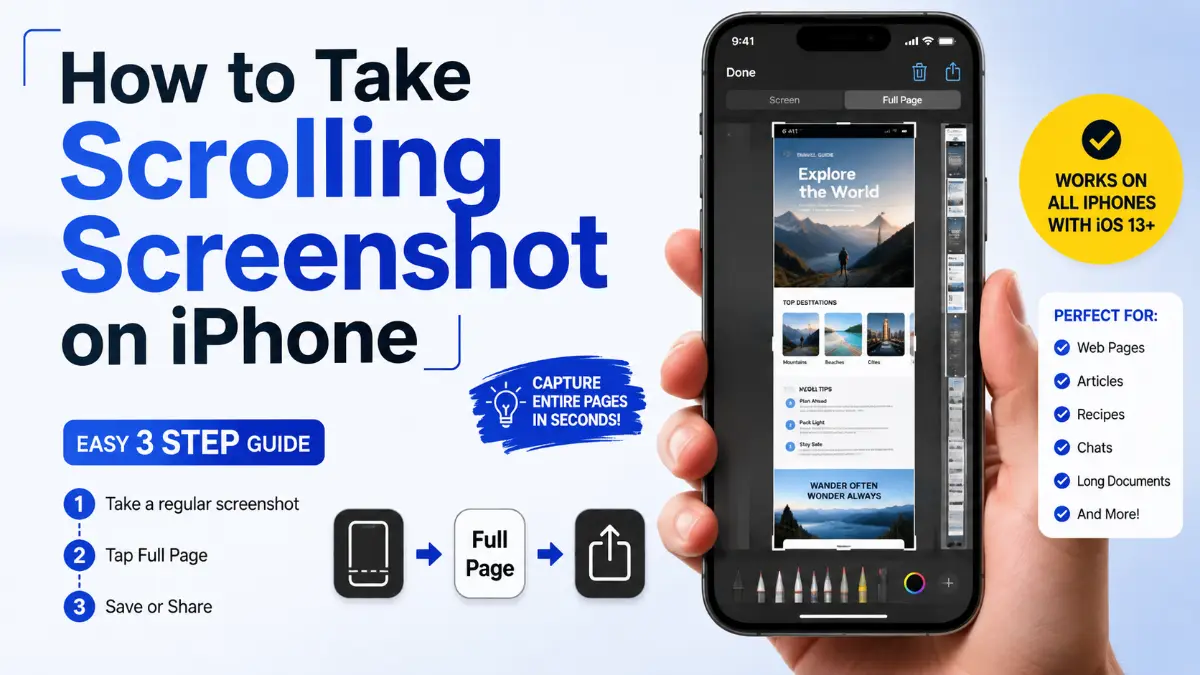
Taking a normal screenshot on an iPhone only captures what appears on your screen at that moment. But if you need to save an entire webpage, long document, email, or note, you need to know How to Take Scrolling Screenshot iPhone users often search for. Apple provides a built-in Full Page screenshot feature that lets you capture extended content and save it as a PDF without manually combining multiple screenshots.
A scrolling screenshot is especially useful when saving online articles, instructions, receipts, travel information, conversations, or research notes. Instead of taking several screenshots and organizing them later, you can capture the complete page in one continuous file. This guide explains how the feature works, supported apps, saving options, troubleshooting steps, and alternative methods when Apple’s built-in option is unavailable.
What Is a Scrolling Screenshot on an iPhone?
A scrolling screenshot on iPhone is an extended screenshot that captures content beyond the visible screen area. Instead of only saving the current display, the Full Page option captures the entire scrollable document or webpage. A regular screenshot records only the visible portion of your screen. A Full Page screenshot expands that capture vertically, allowing you to view the complete content in one file.
Common uses include:
- Saving long Safari webpages
- Capturing complete emails
- Keeping online instructions for offline viewing
- Saving digital receipts
- Archiving documents
- Sharing lengthy information without multiple images
The feature works differently from simply taking several screenshots. iPhone processes the page content and creates a continuous capture that can be viewed as a complete document.
How to Take Scrolling Screenshot iPhone Step by Step
The process begins like a regular screenshot, but you need to select the Full Page option afterward.
Follow these steps:
- Open the webpage, document, email, or note you want to capture.
- Take a screenshot using your iPhone button combination.
- Tap the screenshot preview thumbnail that appears in the bottom-left corner.
- Open the screenshot editor.
- Select Full Page at the top of the screen.
- Review the captured content using the preview slider.
- Adjust the capture area if needed.
- Tap Done.
- Choose where to save the screenshot.
Depending on your iPhone version and available options, you may save it as a PDF in the Files app or save it as an image. The most important step is selecting Full Page before leaving the screenshot editor. If you close the preview too quickly, you will only have the standard screenshot.
Also Read: Detroit Axle Review: Are Their Suspension, Brake, and Hub Parts Worth Buying?
How to Take Scrolling Screenshot iPhone With Face ID
Most modern iPhones use Face ID instead of a Home button. The screenshot shortcut is slightly different from older models.
To capture a screenshot on Face ID iPhones:
- Press the Side button and Volume Up button at the same time.
- Release both buttons quickly.
- Tap the screenshot preview.
- Select Full Page if available.
This method works on iPhone models without a physical Home button.
How to Take a Full Page Screenshot on iPhone With a Home Button
Older iPhone models with a Home button use a different shortcut.
Follow these steps:
- Press the Side button (or Top button) and the Home button together.
- Release both buttons.
- Tap the screenshot thumbnail.
- Select Full Page in the screenshot editor.
The remaining steps are the same as newer iPhone models.
How to Save a Scrolling Screenshot as PDF on iPhone
When you create a Full Page screenshot, the iPhone commonly saves it as a PDF document through the Files app.
Saving as a PDF is useful when you want to:
- Print a webpage
- Store important documents
- Share professional information
- Keep records for later
To save your capture:
- Open the Full Page screenshot preview.
- Tap Done.
- Select Save PDF to Files.
- Choose a folder location.
- Tap Save.
The result will be a PDF file containing the complete captured page. For example, a long article or online form can become a single PDF instead of dozens of separate screenshots.
Can You Save a Scrolling Screenshot as an Image on iPhone?
Many users search for how to save a scrolling screenshot as a normal photo. The answer depends on your iOS version and available options. Traditionally, Apple’s Full Page screenshot feature focused on saving extended captures as PDFs. Newer iOS versions provide additional ways to handle long captures, but availability can vary depending on the content type and device software. If you need a long image file specifically, third-party screenshot tools may provide more flexibility.
Which Apps Support iPhone Full Page Screenshots?
The Full Page screenshot feature does not work everywhere. The app must support Apple’s screenshot extension system.
Common apps where Full Page screenshots may work include:
| App | Full Page Screenshot Support |
| Safari | Yes |
| Notes | Yes |
| Yes | |
| Files | Yes |
| Pages | Yes |
| Numbers | Yes |
| Keynote | Yes |
| Some third-party browsers | Depends on app support |
Apps that often do not provide Full Page support include:
| App Type | Expected Result |
| Social media feeds | Usually unavailable |
| Some messaging apps | Usually unavailable |
| Many banking apps | Often restricted |
| Protected content apps | Usually unavailable |
If you do not see the Full Page button, it does not necessarily mean your iPhone has a problem. The app or content may simply not support the feature.
Read More: C6 Corvette: Complete Guide to Specs, Generations, Prices, and Buying Tips
Why Is the Full Page Option Missing on iPhone?
One of the most common problems users face is that the Full Page option does not appear after taking a screenshot.
There are several possible reasons:
The Page Does Not Need Scrolling
If all content fits on one screen, the iPhone only shows the normal screenshot option.
For example:
- A short webpage
- A small note
- A short email
will usually not display the Full Page option.
The App Does Not Support Full Page Capture
Apple’s feature depends on app compatibility. Some apps block or do not provide extended screenshot support.
The Content Is Protected
Some apps prevent screenshots or limit what can be captured because of security or privacy settings.
Your Software Needs Updating
Older iOS versions may not include all screenshot features. Updating your iPhone software can help ensure you have the latest capabilities.
Alternative Ways to Capture a Scrolling Screenshot on iPhone
When the built-in Full Page feature does not work, you still have several options. These methods are useful for apps that do not support Apple’s native screenshot system.
Use Screen Recording
Screen recording is a simple workaround for unsupported apps.
You can:
- Open Control Center.
- Tap the Screen Recording button.
- Scroll slowly through the content.
- Stop recording when finished.
- Review the video and capture important frames if needed.
This method works with many apps because it records what appears on your display rather than depending on Full Page screenshot support. However, it is less convenient because you may need to manually edit the recording afterward.
Use Third-Party Scrolling Screenshot Apps
Some apps are designed specifically for creating long screenshots. They usually work by capturing multiple screen sections and combining them into one image.
These apps can be useful for:
- Long social media posts
- Chat conversations
- Websites that do not support Full Page screenshots
- Custom image formats
Before installing any screenshot app, check its privacy permissions and reviews to understand how it handles captured content.
Scrolling Screenshot iPhone Tips for Better Results
Getting a clean capture depends on preparing the page before taking the screenshot.
Use these tips:
Remove Unnecessary Content
Before capturing:
- Close pop-ups
- Scroll to the correct starting position
- Remove unnecessary menus if possible
A cleaner page creates a more useful screenshot.
Check the Entire Preview
The Full Page preview allows you to review the capture before saving.
Look for:
- Missing sections
- Cut-off text
- Unwanted blank areas
Making adjustments before saving saves time later.
Choose the Right File Format
Think about how you will use the screenshot.
Choose PDF when you need:
- Documentation
- Printing
- Professional sharing
- Long-term storage
Choose an image format when you need:
- Quick sharing
- Visual reference
- Social media posting
How to Screenshot an Entire Webpage on iPhone Using Safari
Safari is one of the most common places where users need full-page captures.
To capture an entire webpage:
- Open Safari.
- Visit the webpage.
- Take a screenshot.
- Tap the screenshot preview.
- Select Full Page.
- Review the page preview.
- Save the file.
Safari Full Page screenshots are especially useful for:
- Articles
- Tutorials
- Online guides
- Product information
- Research pages
Instead of saving multiple screenshots, you can keep the complete webpage in one document.
Full Page Screenshot iPhone Limitations You Should Know
Although the feature is useful, it has some limitations.
It Does Not Capture Every App
A full-page screenshot is not a universal iPhone function that works everywhere. Apps must support the feature.
Some Interactive Elements May Not Work
A screenshot is a static capture. It does not preserve:
- Videos
- Interactive buttons
- Drop-down menus
- Animations
Very Long Pages May Need Review
Extremely long webpages may create large files. Always check the final document before sharing or storing it. Understanding these limitations helps avoid confusion when the feature does not behave as expected.
Common Problems and Quick Fixes
The Screenshot Preview Disappeared
If you accidentally close the screenshot preview:
- Take another screenshot
- Tap the thumbnail immediately
- Select Full Page
Full Page Screenshot Is Blank or Incomplete
Try:
- Reloading the webpage
- Removing browser extensions or blockers
- Scrolling slightly before capturing
- Updating iOS
The Screenshot Looks Different From the Original Page
Webpages can change depending on:
- Browser settings
- Dynamic content
- Advertisements
- Loading elements
For important information, review the final PDF before saving permanently.
Frequently Asked Questions
How to Take Scrolling Screenshot iPhone?
To take a scrolling screenshot on an iPhone, capture a normal screenshot, open the preview, select Full Page, review the extended capture, and save it. This works mainly in supported apps such as Safari, Notes, and Mail.
Can I take a full page screenshot on an iPhone without an app?
Yes. iPhone includes a built-in Full Page screenshot option for supported apps. You do not need an additional app when the feature is available.
Why does my iPhone not show the Full Page option?
The Full Page option may not appear because the app does not support it, the content fits on one screen, or the page does not contain additional scrollable content.
How do I save a scrolling screenshot as PDF on iPhone?
After creating a Full Page screenshot, tap Done and choose Save PDF to Files. The complete capture will be stored as a PDF document.
Can I take a scrolling screenshot in Safari on iPhone?
Yes. Safari supports Full Page screenshots, making it one of the easiest ways to capture an entire webpage on iPhone.
Does scrolling screenshot work on Instagram or social media apps?
Usually, no. Many social media apps do not support Apple’s Full Page screenshot system. A screen recording or third-party tool may be needed instead.
Can I edit a Full Page screenshot before saving it?
Yes. You can use the screenshot editor to crop, mark up, or adjust the capture before saving the file.
Do older iPhones support scrolling screenshots?
Full Page screenshots depend on iOS features and app support rather than only the iPhone model. Older devices running compatible iOS versions may support the feature.
Is an iPhone scrolling screenshot saved as an image or PDF?
The traditional Full Page option saves the capture as a PDF document. Other image-based solutions may create a long image file depending on the method used.
What is the easiest way to capture an entire webpage on an iPhone?
Using Safari’s Full Page screenshot feature is usually the simplest method because it is built directly into iOS and does not require additional tools.